
iPhone and iPad
YouTube to MP3 on iPhone
No App Store app needed: AudioFetcher runs in Safari, and a free Apple Shortcut puts it in YouTube's Share menu. Here is how to convert, where the file ends up, and how to get it into Music, Photos or your ringtones.
Option 1: the website in Safari
- In the YouTube app, tap Share under the video, then Copy link.
- Open audiofetcher.com in Safari and tap Paste.
- Pick MP3, or M4A for YouTube's original AAC audio (the best fit for Apple's apps), or MP4 for the video. Tap Fetch.
- When it's ready, tap Download. Safari asks whether to download the file; tap Download again. The downloads arrow in the address bar shows the progress.
Option 2: one tap from YouTube with the AudioFetcher shortcut
iPhones don't let websites join the Share menu, but Apple's own Shortcuts app can. The AudioFetcher shortcut takes the link you share and opens it in Safari, ready to convert.
- Tap the button above. The Shortcuts app opens; tap Add Shortcut.
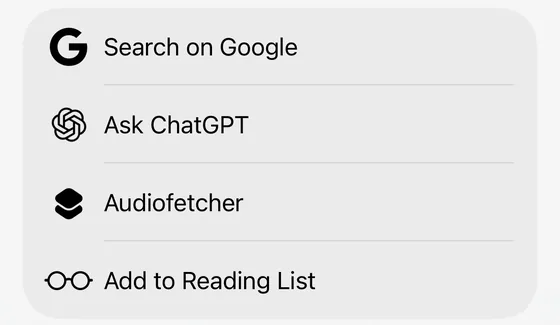
- In the YouTube app, tap Share on any video or Short and choose AudioFetcher. Scroll down the list, or tap More, if you don't see it.
- The first time, tap Always Allow. Safari opens AudioFetcher with the link already filled in.
Option 3: change the address in Safari
Watching YouTube in Safari? Replace youtube.com (or m.youtube.com) with audiofetcher.com in the address bar and go. youtube.com/watch?v=… becomes audiofetcher.com/watch?v=…, and Shorts work the same way.
The quick version
- 1Send the link
Share > AudioFetcher with the shortcut, or copy the link and paste it on audiofetcher.com in Safari.
- 2Pick a format
M4A or MP3 for Apple's apps, MP4 for the video. Free for single videos up to 60 minutes of audio, or 40 minutes of MP4.
- 3Download
Tap Fetch, then Download, and confirm Safari's prompt.
- 4Open it in Files
The file is in the Files app under Downloads, ready to play, share or move.
Where the file goes on your iPhone
Safari saves downloads to Files › iCloud Drive › Downloads, or On My iPhone › Downloads if you changed it under Settings › Safari › Downloads (on iOS 18: Settings › Apps › Safari › Downloads). Chrome for iPhone keeps its downloads in Files › On My iPhone › Chrome. Tap the file in Files to play it; long-press it to share, move or rename it.
Getting it into Music, Photos or your ringtones
- Music app: the iPhone's Music app can't import a file from Files by itself. Add the MP3 or M4A to Music on a Mac (File › Import) or to Apple Music or iTunes on a Windows PC, then sync your iPhone with a cable or, with an Apple Music or iTunes Match subscription, through Sync Library. To skip the computer, play it from Files or from a player such as VLC, which can import from Files.
- Photos: choose MP4, open the downloaded video in Files, tap Share and then Save Video.
- Ringtone: cut up to 40 seconds into an .m4r file with the Ringtone Maker, right in Safari. The ringtone guide shows how to install it, including the GarageBand route that needs no computer.
Common problems on iPhone
- The .opus file won't play. Apple's apps don't support Opus. Convert again as M4A (the same original quality) or MP3.
- AudioFetcher isn't in the Share menu. Scroll to the bottom of the Share menu, tap Edit Actions and add AudioFetcher to your favorites so it stays at the top.
- The download stopped. Keep Safari open until it finishes, especially for long MP4s on mobile data. Files only stay on the server for a short time, so if the link has expired, fetch the video again.
- A video fails to convert. Private, age-restricted, region-restricted, removed and live videos can't be converted. See the help page for each error.
Questions
Do I need an app to convert YouTube to MP3 on iPhone?
No. AudioFetcher works in Safari. The shortcut is optional and runs in Apple's own Shortcuts app, which comes with every iPhone.
Is the AudioFetcher shortcut safe?
Yes. It only takes the link you share, encodes it and opens audiofetcher.com with it. The Shortcuts app shows every action before you add it, and it can't read your photos, messages or other apps.
Where are my downloaded MP3s?
In the Files app: iCloud Drive › Downloads, or On My iPhone › Downloads if you changed Safari's download location. Chrome keeps its downloads in On My iPhone › Chrome.
Should I pick MP3 or M4A on iPhone?
M4A is YouTube's original AAC audio with no re-encoding, and every Apple app plays it. MP3 is the safer choice if the file will also go to a car stereo or an older player. Avoid Opus on Apple devices.
Can I add the song to Apple Music on my iPhone?
Not directly from the phone. Import the file into Music on a Mac or into Apple Music or iTunes on Windows, then sync. Without a computer, play it from Files or VLC.
Does this work on iPad?
Yes. Safari, the shortcut and the Files app work the same way on iPad. Only convert videos you own or have permission to download.