
Free tool
Convert YouTube to MP3 in one click
Four ways to send the video you're watching straight to AudioFetcher, without copying and pasting links. None of them needs a browser store, and they work in every desktop browser.
1. The bookmark (desktop, any browser)
Drag this button onto your bookmarks bar. Then, on any YouTube video or Short, click the bookmark: AudioFetcher opens in a new tab with that video ready to convert.
What the bookmark does
javascript:(()=>{const u=location.href;if(!/(^|\.)(youtube\.com|youtu\.be)$/.test(location.hostname)||!/[?&](v|list)=|\/(shorts|live)\/|youtu\.be\//.test(u)){alert("Open a YouTube video first, then click this bookmark.");return;}window.open('https://audiofetcher.com/?src=bookmarklet&url='+encodeURIComponent(u),'_blank');})();It reads the address of the YouTube page you're on and opens audiofetcher.com with it. Nothing else: no access to your account, cookies or other tabs.
2. Change the address
On any YouTube video, replace youtube.com with audiofetcher.com in the address bar and press Enter. For example youtube.com/watch?v=… becomes audiofetcher.com/watch?v=…. It works for Shorts, live videos and playlists too.
3. A button on YouTube (userscript)
Prefer a real button on the YouTube page? Install a userscript manager such as Tampermonkey or Violentmonkey, then install the AudioFetcher script. It adds a small MP3 · AudioFetcher button to every video and Short.
4. On your phone: the Share menu
Android: open audiofetcher.com in Chrome or Edge and choose Install app (or Add to Home screen) from the browser menu. AudioFetcher then appears when you tap Share in the YouTube app.
iPhone and iPad: the AudioFetcher shortcut
iPhones don't let websites join the Share menu, but a free Apple Shortcut can. Once it's added, tap Share on any YouTube video and pick AudioFetcher: Safari opens AudioFetcher with the video ready.
- Open the Shortcuts app, tap + and name it AudioFetcher.
- Search the actions for URL Encode and add it. At the top, tap Nowhere and choose Share Sheet, then tap the input type and keep only URLs and Text. Set URL Encode to use Shortcut Input.
- Add a Text action and type
https://audiofetcher.com/?src=shortcut&url=, then, right afterurl=, insert the URL Encoded Text variable (it's in the bar above the keyboard). - Add Open URLs; it reads Open Text. The finished shortcut looks like this:
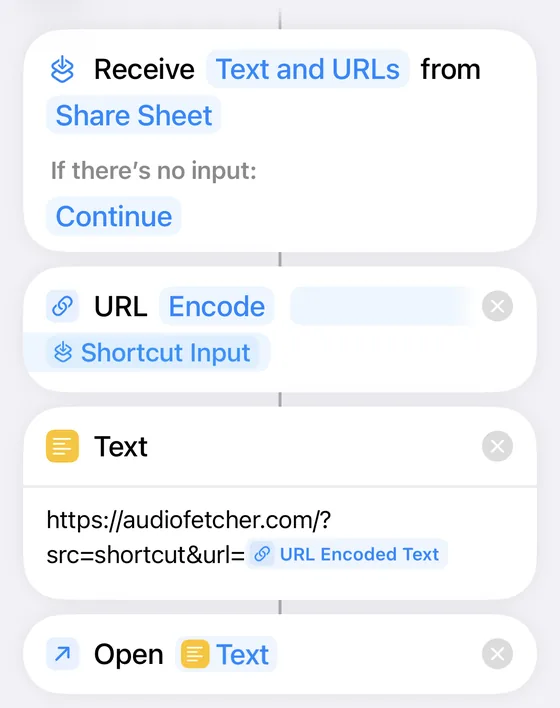
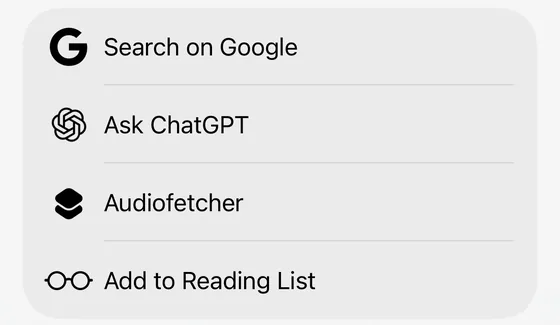
Now, in the YouTube app, tap Share on a video and choose AudioFetcher (scroll down the list, or tap More). The first time, tap Always Allow.
Using Firefox? There's also the AudioFetcher add-on for converting and queueing straight from YouTube.
How it works
- 1Pick a way
The bookmark for desktop browsers, the userscript for a button on YouTube, the address trick anywhere, or the Share menu on Android.
- 2Open a YouTube video
Any public video, Short, live video or playlist.
- 3Send it to AudioFetcher
Click the bookmark or button, or change the address. AudioFetcher opens with the link already filled in.
- 4Choose a format and convert
MP3, FLAC, the original Opus or M4A audio, or MP4. Free for single videos up to 60 minutes.
Questions
Why isn't there a Chrome extension?
The Chrome Web Store doesn't allow extensions that download from YouTube. The bookmark and the userscript do the same job without a store, in Chrome, Edge, Brave, Opera and Firefox.
Is the bookmark safe?
Yes. It's one line of code, shown above, that reads the address of the page you're on and opens audiofetcher.com with it. It can't see your passwords, cookies or other tabs.
Does it work on phones?
Bookmarks are awkward on phones, so use the address trick or the Share menu instead. On Android, install AudioFetcher from the browser menu and pick it from YouTube's Share button. On iPhone, add the free AudioFetcher shortcut (steps above) and it appears in YouTube's Share menu too.
Does it download the video by itself?
No. It opens AudioFetcher with the link filled in; you choose the format and press Fetch. Only convert videos you own or have permission to download.